
👥 Townkins: How to Add Friends
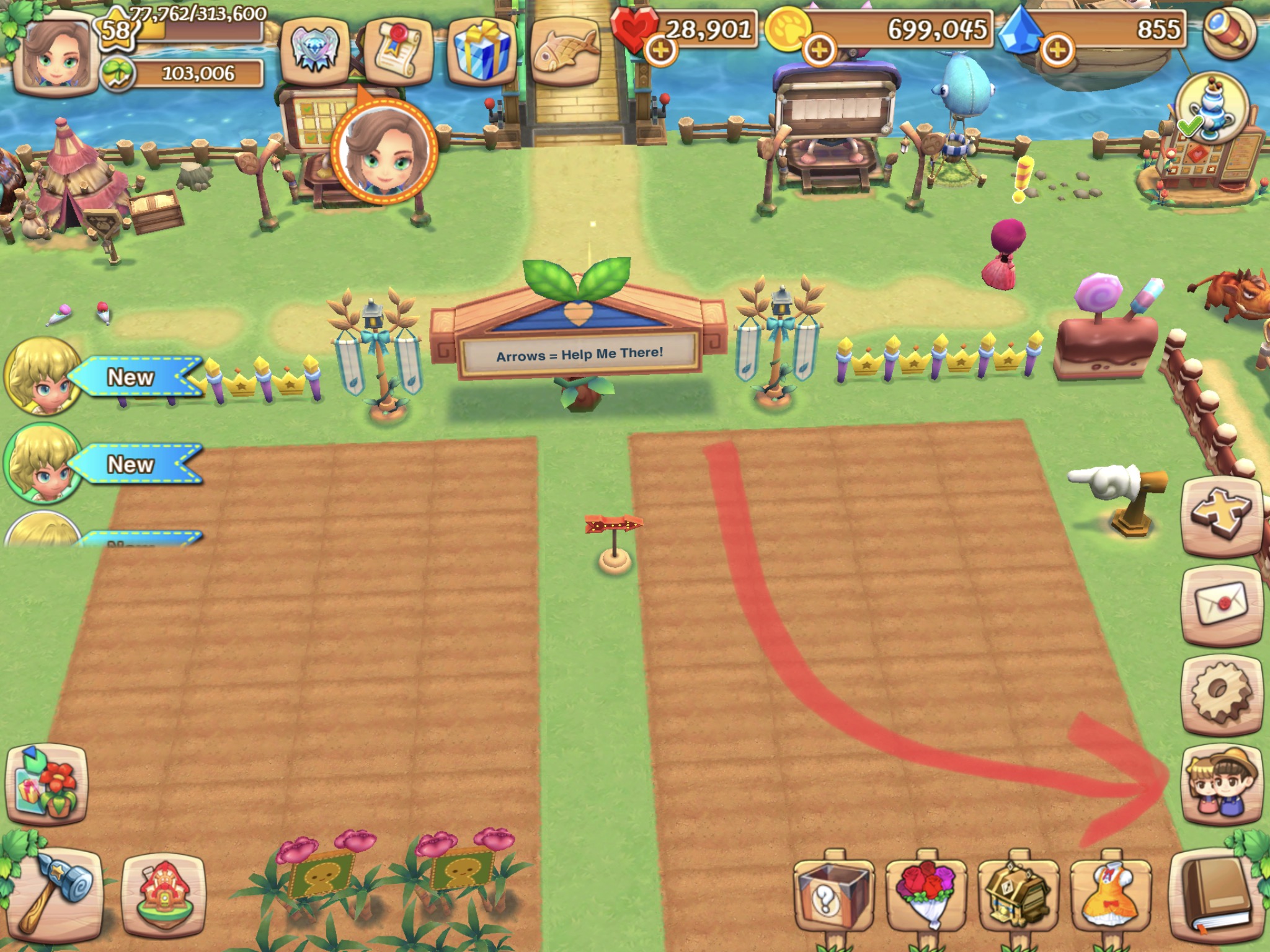
When you’re looking at your town, look at the bottom right corner. You’ll see a brown book in the bottom right. If you click it, you’ll get the expanded menu you see in my first image. Open Friends — where the red arrow is pointing.
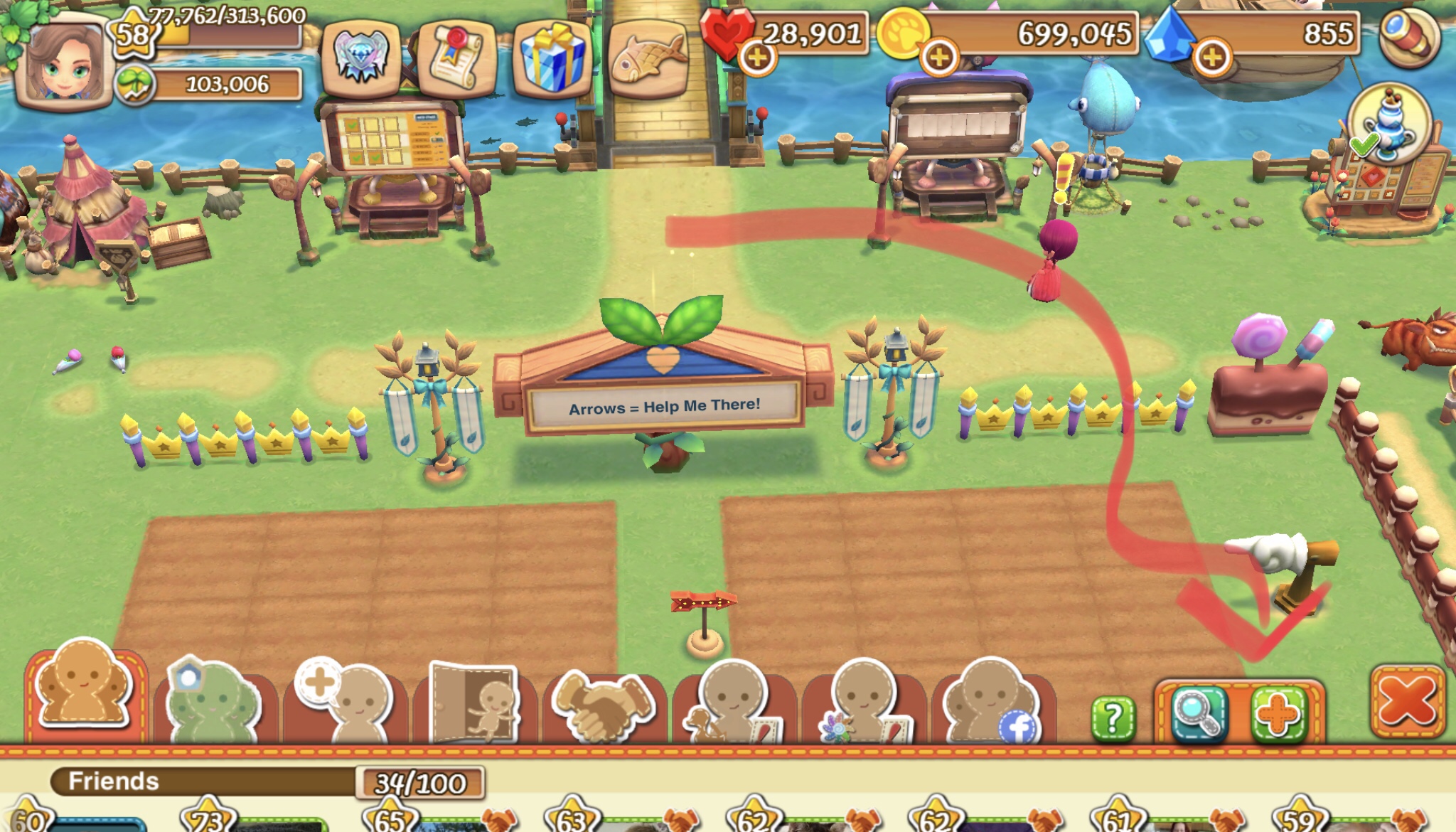
With the friend menu open, you’ll want to select the plus sign—it’s red on a green background, and located to the right of the magnifying glass/search option.
(Note: The search option here only searches people already in your friend list.)
🔗 Invite Options
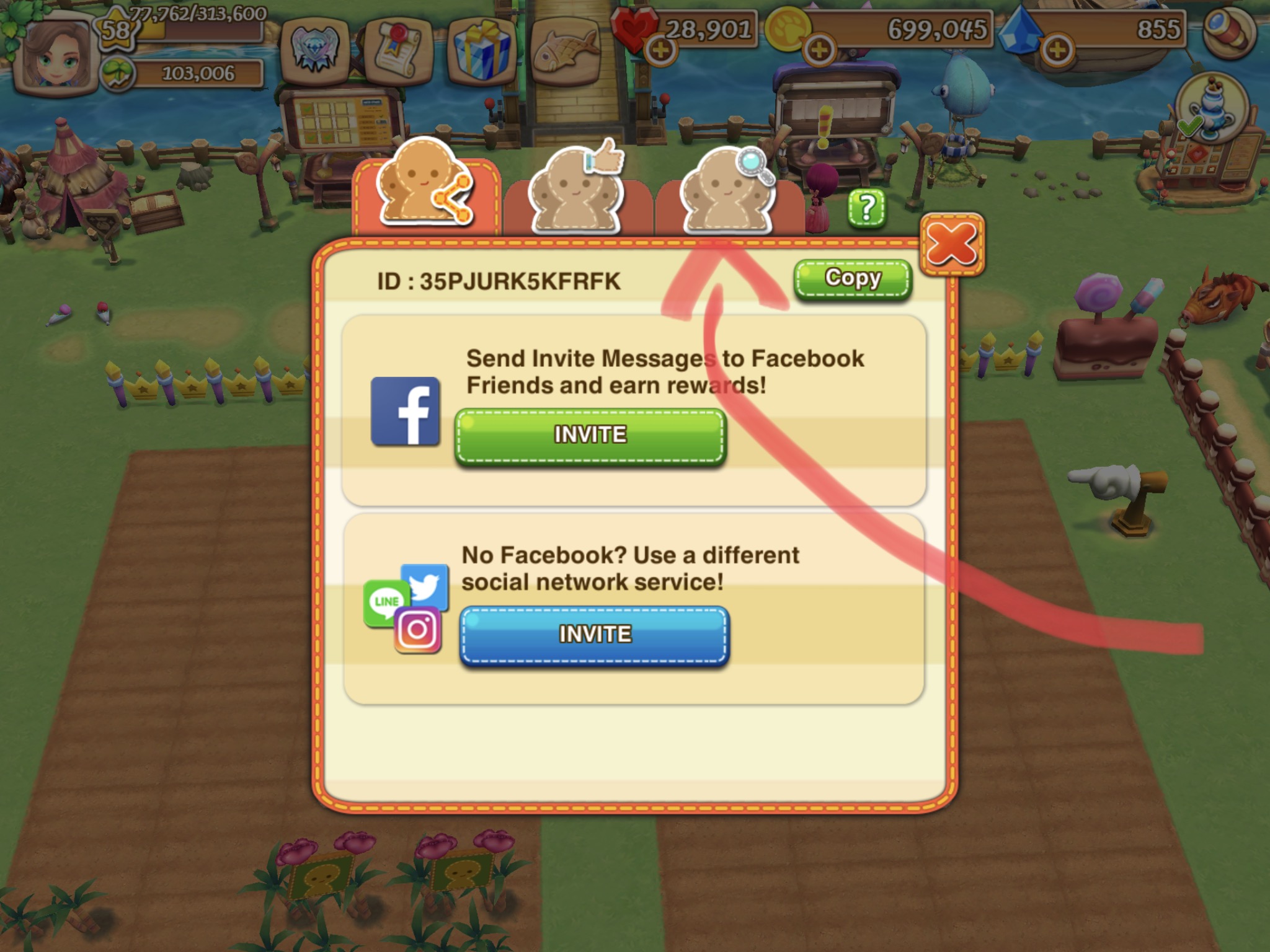
When you click the plus sign, you’ll see a page with options to invite people from Facebook or other social media services. At the top, you’ll also see your game ID and a Copy button. This lets you copy your ID to your clipboard, since you can’t highlight the image directly.
📋 Tabs Overview
- Tab 1: Invite via social media (includes your game ID)
- Tab 2: Shows a player with a thumbs-up—this lists random players you can add
- Tab 3: Shows a player with a magnifying glass—this is where you search for friends
🔍 Searching for Friends
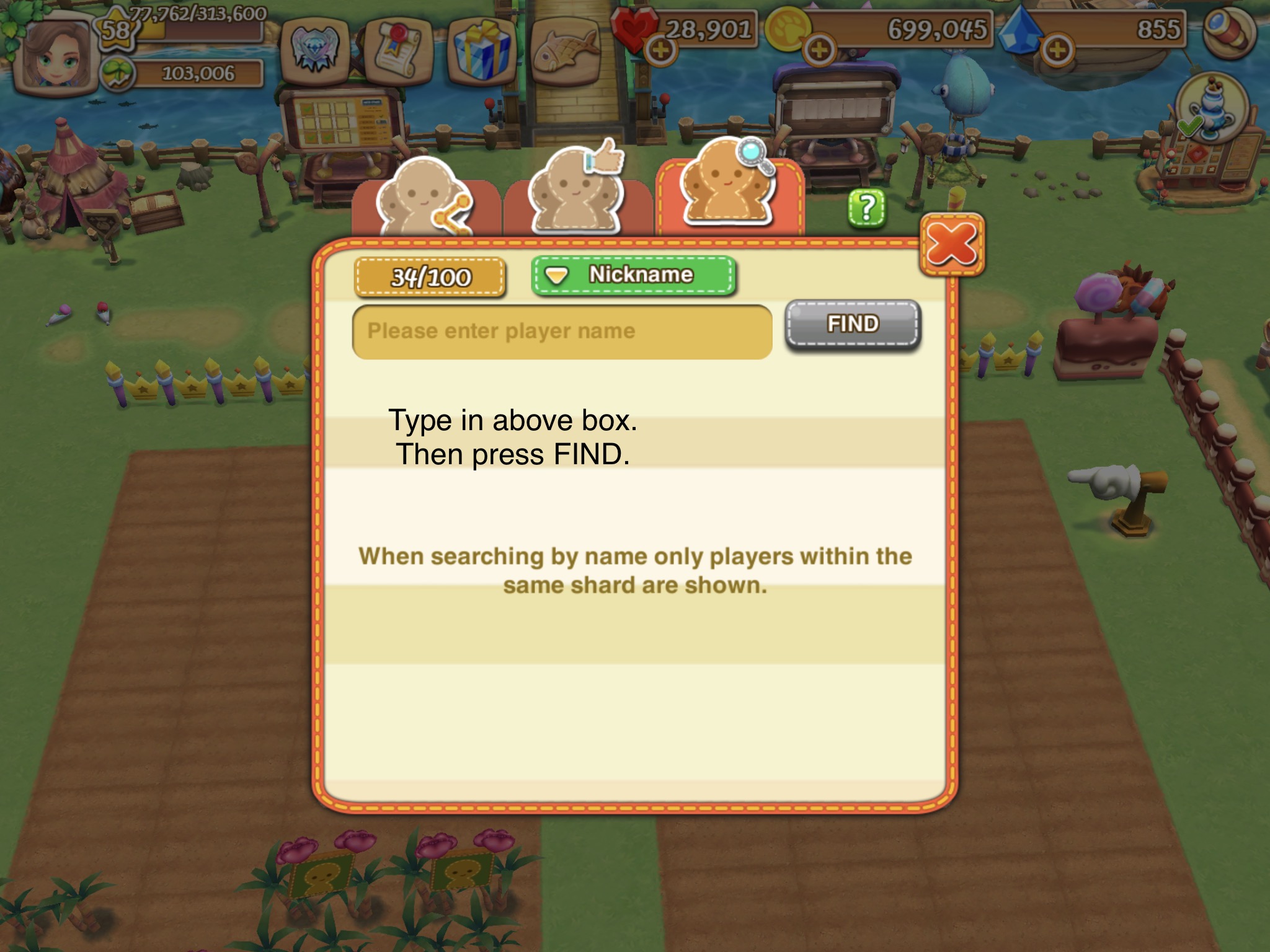
In the third tab, you can search by your friend’s nickname (what they go by in the game) or their game/player ID. Then press Find.
- Search is not case sensitive
- Spelling must be exact—otherwise you’ll get a “this user does not exist” message
The game allows multiple people to use the same name. For example, there are a lot of players named Xena. If your search returns many results and you don’t recognize any profile images, ask your friend for their game/player ID. It’ll save you loads of time.
 Gaming Jane
You must be logged in to post a comment.